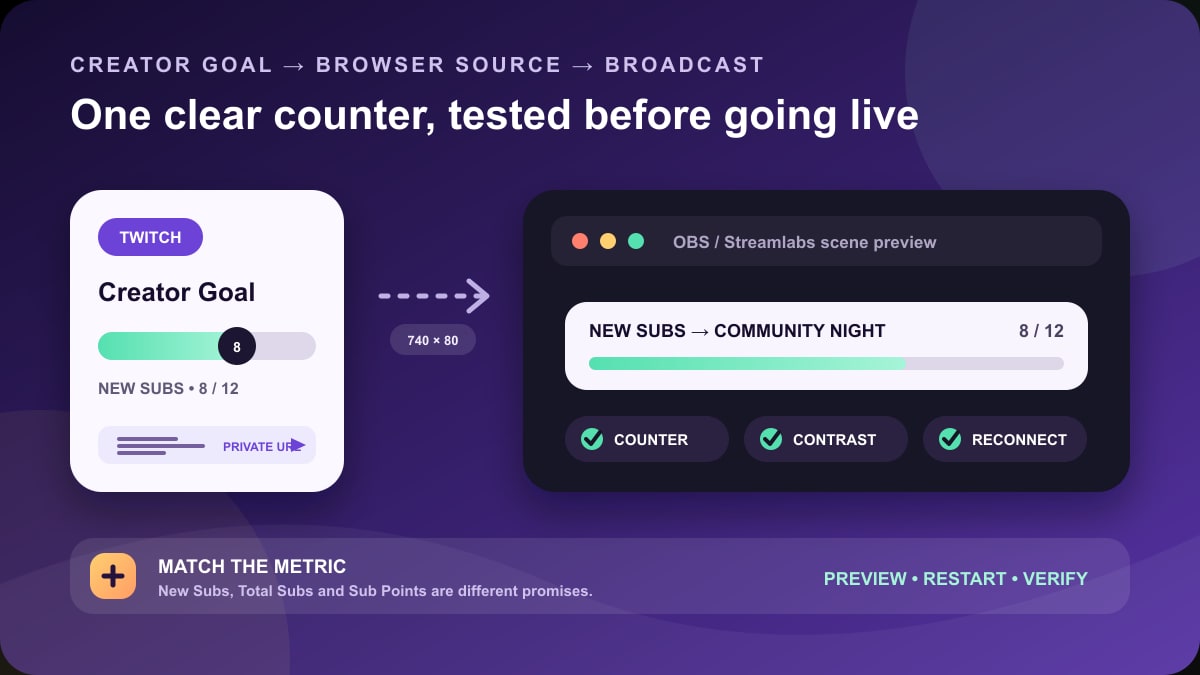
Quick answer: OBS does not generate a Twitch chat overlay by itself. Create a chat-box widget with a trusted overlay provider, copy its private widget URL, and add that URL as an OBS Browser Source. Then size it to your canvas, customize readable text and message timing, and test it with real chat before going live.
This guide was substantially rewritten in July 2026 from current OBS Browser Source documentation. It removes unsupported “tested and reviewed” claims from the old article.
Chat dock and chat overlay are different
- Chat dock: helps the streamer read and moderate chat inside OBS. Viewers do not see it in the broadcast.
- Chat overlay: renders selected messages inside the video scene, so everyone watching the stream or VOD can see them.
Do not capture your whole Twitch chat browser window. A widget is easier to style, can hide browser controls, and is less likely to expose unrelated tabs or account information.
Add a Twitch chat overlay to OBS
- Sign in to a reputable overlay provider through its official site.
- Create or open a chat-box widget.
- Choose colors, font, message duration, badges, emotes, and filtering.
- Copy the widget URL. Treat it as private if it contains a token.
- In OBS, choose Sources → + → Browser.
- Paste the URL and set a viewport size appropriate for the layout.
- Resize and crop the source in the scene.
- Send test messages from another account and inspect the output at full-screen and phone size.
OBS's official chat-overlay FAQ confirms that OBS relies on third-party alert providers for stream chat overlays. The widget is embedded through a Browser Source.
Browser Source settings that matter
The current OBS Browser Source guide documents URL, width, height, frame rate, custom CSS, page permissions, cache refresh, and options to unload or refresh the source.
- Width and height: define the widget's browser viewport, not only its visible transform size.
- Custom frame rate: 30 fps is usually enough for chat; a higher value costs more rendering work.
- Shutdown when not visible: saves resources but may reset the widget when hidden.
- Refresh when scene becomes active: can fix stale widgets but may cause messages to reload.
- Custom CSS: can refine styling, but provider updates may break selectors.
Make the overlay readable
- Use a high-contrast text color and a shadow, outline, or semi-opaque background.
- Keep usernames distinguishable without relying only on color.
- Use a font large enough for a phone-sized player.
- Limit line length and message count so gameplay remains visible.
- Keep chat away from captions, sponsor labels, alerts, and game UI.
- Allow enough display time to read a normal two-line message.
A transparent overlay can look clean in OBS but disappear over a bright game. Test on both the lightest and darkest scenes you broadcast.
Privacy and moderation
Putting chat on screen republishes usernames and messages into the video and potentially the VOD, clip, or social-media edit. Deleted Twitch messages may remain visible in a recording. Consider hiding bot messages, commands, links, and messages held for moderation.
- Enable Twitch AutoMod and keep human moderators active.
- Do not show whispers, private messages, moderator notes, or dashboard data.
- Use a provider filter for blocked terms and bot commands where available.
- Have a quick action to hide the overlay during a raid or abuse incident.
- Do not expose the widget URL on stream, in screenshots, or in a public scene export.
Troubleshoot a missing chat overlay
It is blank
Verify the widget is enabled, the correct Twitch channel is connected, messages are recent enough for the provider's display rule, and the source is not hidden behind another layer. Open the provider's preview before changing OBS.
It works in a browser but not OBS
Refresh the Browser Source cache, recreate the source with the current widget URL, update OBS, and check whether custom CSS is hiding content. Do not paste authentication cookies or personal tokens into a support post.
Text is cut off
Increase the Browser Source width or height, then resize the source. Changing only the transform can scale a clipped viewport rather than reveal the missing content.
It uses too much CPU or GPU
Reduce the source frame rate, disable heavy animations, remove unused browser sources, and consider unloading the widget when not visible. Browser widgets are web pages and can consume meaningful rendering resources.
Messages appear twice
Check for duplicate Browser Sources in nested scenes and disable one. Also confirm the provider is not receiving mirrored messages from multiple integrations.
Should you show chat on stream?
A chat overlay helps when videos are watched without Twitch's live chat, when the stream is repurposed, or when audience messages are central to the format. It is less useful when it covers important UI, encourages viewers to perform for the overlay, or creates a moderation burden.
For a clean gameplay stream, a chat dock visible only to the creator may be the better choice.
Frequently asked questions
Does OBS have a built-in Twitch chat overlay?
No. OBS can show docks for the operator, but its official FAQ says an on-stream overlay normally comes from a third-party provider through Browser Source.
Can I use custom CSS?
Yes. OBS Browser Source supports custom CSS, and many providers expose styling controls. Keep a copy of working styles because provider markup can change.
Why does chat look blurry?
Set the Browser Source viewport near the resolution at which it will be rendered, avoid enlarging a tiny source, and check the stream's overall scaling and bitrate.
Will deleted messages disappear from the VOD?
No guarantee. Once a message is rendered into the video, later Twitch moderation cannot remove those pixels from an existing recording. Moderate before display when the risk is high.