Quick answer: Use Twitch Creator Dashboard Analytics for decisions about your own channel because it includes first-party stream, discovery, engagement, revenue, and achievement data. Use public trackers such as TwitchTracker or SullyGnome for directional market research only. Their estimates, historical coverage, bot handling, and category definitions can differ from Twitch.
This guide was substantially rewritten in July 2026. It separates official private analytics from third-party public estimates and removes promises that one tracker is fully accurate.
Start with official Twitch Analytics
Twitch's current Analytics documentation describes six areas:
- Overview: performance snapshot, milestones, clips, and achievement progress.
- Research: global category and time-to-stream data.
- Stream Summary: post-stream results and audience insights.
- Achievements: Affiliate and Partner progress.
- Discovery and Engagement: where viewers came from and how they interacted.
- Earnings: revenue sources and payout history for eligible creators.
Use a consistent date range and compare similar streams. A single raid, front-page placement, collaboration, or unusually long broadcast can distort averages.
What TwitchTracker is useful for
A public tracker can help explore:
- channel and category trends over time;
- stream schedules and broad audience patterns;
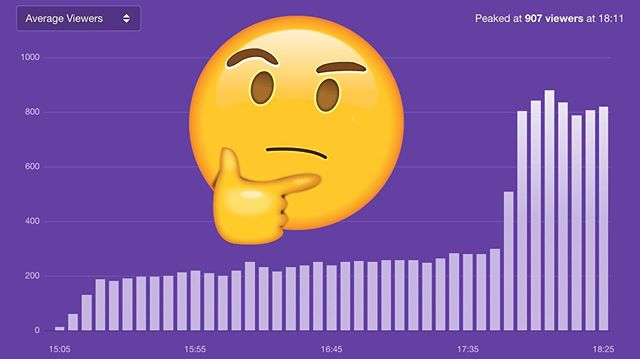
- peak and average concurrent-viewer estimates;
- relative growth among public channels;
- historical context no longer visible in a live directory.
Do not use a tracker to infer private revenue, unique viewers, exact follower quality, or another creator's business health.
Common tracker limitations
- Collection may miss downtime, short streams, or API interruptions.
- Average viewers can be calculated differently.
- Follower counts do not reveal active audience or fake-follow cleanup.
- Category changes within a broadcast can be grouped differently.
- Public viewership cannot identify unique people or watch time accurately.
- Historical rankings can reflect botting, raids, events, or embeds without enough context.
A precise-looking number is not necessarily an authoritative number.
Alternatives and what they answer
- Twitch Analytics: “What happened on my channel, and how did viewers discover and engage with it?”
- Twitch Research: “When and where might a category have a favorable viewer-to-channel ratio?”
- TwitchTracker: “What public trend does this channel or category appear to show?”
- SullyGnome: “How do public games, channels, teams, and languages compare over a selected window?”
- Your spreadsheet: “Which formats, titles, guests, and schedules repeatedly worked for my goals?”
A better channel-review method
- Export or record official metrics for a fixed four-week period.
- Label each stream by topic, format, schedule, guest, and promotion.
- Compare median viewers and retention, not only peaks.
- Review discovery sources and follows per stream.
- Use public tracker data only to add category context.
- Choose one change for the next four streams and measure again.
Privacy and account safety
Public tracker browsing should not require your Twitch password. If a tool offers private analytics through OAuth, read every requested scope, use the authentic Twitch authorization screen, and disconnect access when you stop using it.
Never paste a client secret, access token, browser cookie, or Creator Dashboard export into a public comparison page.
Frequently asked questions
Is TwitchTracker accurate?
It can be useful for directional public trends, but it is not the authoritative source for private channel performance. Compare its numbers with Twitch Analytics and understand its methodology.
Can TwitchTracker show income?
It cannot know a creator's complete private revenue, contracts, expenses, tax position, gifted-sub arrangements, or off-platform earnings. Treat income calculators as speculative.
What is the best alternative?
For your own channel, Twitch Analytics is the primary tool. For public category research, compare more than one tracker and record the observation date.