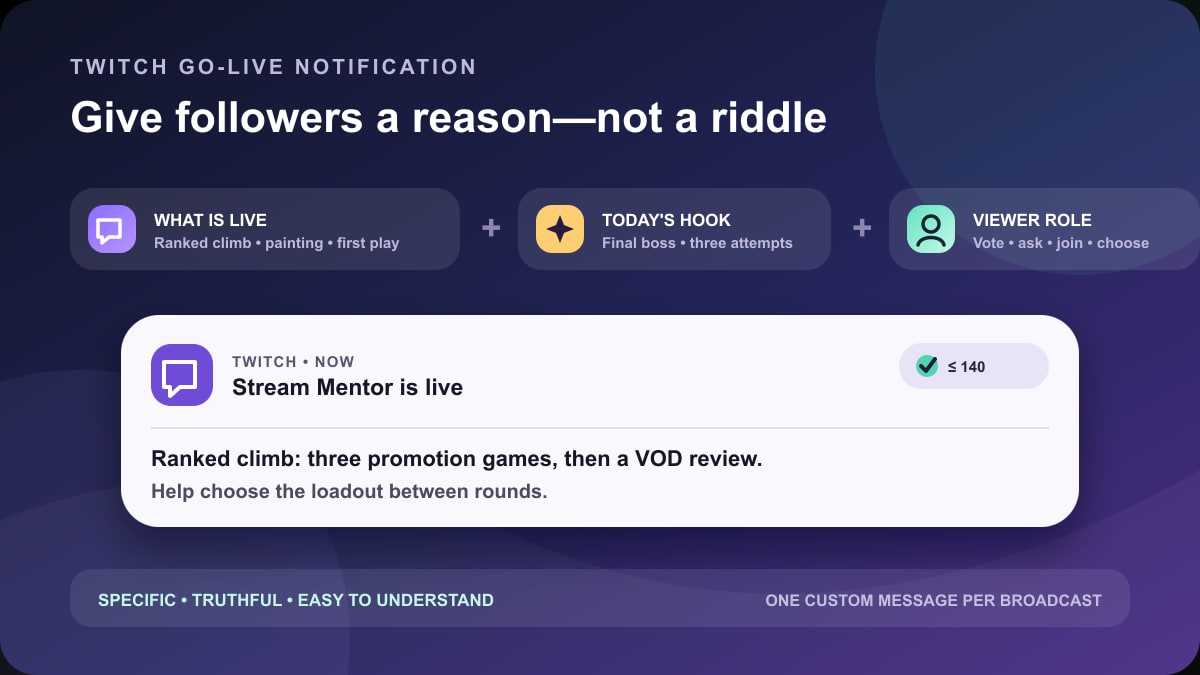
Quick answer: a useful Twitch go-live notification says what is happening now, gives one specific reason to join, and stays truthful. Write it in Creator Dashboard → Stream Manager → Edit Stream Info. Twitch currently allows up to 140 characters, checks the message with AutoMod, does not support Twitch emotes in the field, and sends only one custom go-live notification per broadcast session.
A practical formula is: [what is live] + [today's specific hook] + [optional viewer role or time]. For example: “Ranked climb is live: three promotion games, then a VOD review. Help choose the loadout between rounds.” It tells a follower more than “I'm live!” without pretending that every stream is historic.
Checked July 24, 2026: Stream Mentor rewrote this guide from Twitch's current go-live, notification-delivery, Smart Notifications, and analytics documentation. The old page offered seven generic lines, implied that OBS and Streamlabs controlled the message, and did not explain the 140-character limit, AutoMod review, delivery preferences, or measurement. The examples below are original, manually written starting points—not copied slogans or claims that a phrase guarantees more viewers.
How Twitch go-live notifications work now
Twitch's go-live notification guide says the custom message can appear in email and mobile push notifications for followers whose settings permit it. Leaving the field blank uses a default message such as “Username is now live.” A custom message can give the stream context before someone decides whether to open Twitch.
Creators do not control guaranteed delivery. A follower can set a channel to Always, Personalized, Go Live Only, or Off. Personalized is the default and can consider viewing history, time of day, and recent notification frequency. Twitch's Smart Notifications can also route a notification differently depending on whether the person is active on Twitch. One viewer may see an on-site notification while another receives mobile push or email.
This means a low response is not proof that the copy alone failed, and a follower missing one alert is not proof that Twitch sent it incorrectly. The creator can write a clear message and maintain a dependable schedule; the viewer controls the final channel and preference settings.
Set or change your go-live notification
- Open Creator Dashboard.
- Go to Stream Manager.
- Select Edit Stream Info.
- Enter the message in the Go Live Notification field.
- Keep it at or below 140 characters and review it without relying on a truncated preview.
- Save the stream information before starting the broadcast.
OBS Studio and Streamlabs Desktop can send the video feed to Twitch, but the notification text is a Twitch channel setting. Configure it in Twitch's dashboard even if the stream itself starts from another application.
Twitch checks the custom message with AutoMod. If it fails review, rewrite it in plain language rather than trying to evade moderation. Twitch emotes are not available in this field. Unicode symbols may render differently across email, mobile, and devices, so the examples in this guide use readable text that does not depend on an image or emote.
Twitch allows one custom go-live notification per broadcast. Its documentation says another can be sent after four hours if the creator ends and restarts the stream. Do not interrupt a healthy broadcast merely to manufacture a second alert. Treat a restart as a real new session only when the content and schedule justify it.
Write a notification people can understand
| Part | Useful information | Weak substitute |
|---|---|---|
| What | Ranked climb, blind playthrough, live painting, song workshop, community review | “Stuff,” “vibes,” or a mystery with no context |
| Why today | Final boss, new chapter, three attempts, viewer vote, guest, deadline | “Best stream ever” every day |
| Viewer role | Vote on a route, submit a question, choose a prompt, join a lobby | Pressure to subscribe or spend |
| Timing | First hour, at 8 PM ET, after two matches | False “last chance” urgency |
The message does not need every part. A short line with a concrete noun and verb is stronger than filling all 140 characters with adjectives. Put the most useful information first because email subject lines and lock screens can truncate the end.
A five-question edit
- Could this describe yesterday's stream? If yes, add today's actual segment, opponent, project, chapter, or challenge.
- Can a new follower understand it? Avoid unexplained in-jokes as the only hook.
- Is the promise already prepared? Do not announce a guest, giveaway, patch, or milestone that is not confirmed.
- Does it shame people for missing a stream? Remove guilt, insults, or fake emergencies.
- Does the first half work alone? Move the category and hook before optional context.
40 Twitch go-live notification ideas
Replace the bracketed detail before using an example. Do not paste a line that describes content you are not actually streaming. Every example below is designed to fit within Twitch's 140-character limit after a reasonably short replacement.
Ranked, competitive, and challenge streams
Ranked climb is live: three promotion games, then a VOD review. Help choose the loadout between rounds.One rank, one session: the climb starts now. I will review every loss instead of blaming the queue.Can this off-meta build win five games? Live testing starts now, with results tracked after every match.Speedrun practice is live: three full attempts and a route review after each reset.Final boss tonight. No spoilers, one prepared build, and chat votes on the backup strategy.New patch, first ranked session: testing [hero or weapon] before deciding whether it belongs in the main build.Viewer challenge run starts now: the rules are fixed, the timer is ready, and the first attempt is live.Tournament prep is live: warm-up, two practice sets, then a replay review before tomorrow's bracket.
First plays, story games, and variety
Blind playthrough starts now: [game], chapter one, no backseating unless I ask.Back to [game]: tonight we finish the side quests and open the door we avoided last stream.Three demos, one keeper. Live first impressions, then chat votes on which game returns next week.Co-op night is live: [game] with [guest], shared objectives, and a hard rule against story spoilers.Indie discovery stream: four short games, honest notes, and a final audience ranking.Comfort-game evening starts now: [game], side quests, and a calm catch-up between missions.We are finishing [chapter or quest] tonight. Recap first, then the next story decision goes to chat.Retro night is live: [game] on original settings, with a short history break between levels.
Art, music, coding, and making
Live illustration: sketch to color in one session. Chat chooses one of three prepared palettes.Logo redesign is live: audit, rough concepts, and one finished direction before the stream ends.Song workshop starts now: build one chorus from a blank session and explain every major choice.Practice room is open: [instrument], three difficult sections, and a clean take attempt at the end.Live coding: fixing [feature] from failing test to reviewed patch. No production secrets on screen.Small build, one stream: designing and testing a [project] from the first cut to the final check.Photo edit session is live: select, color, crop, and export one set with the full workflow visible.Writing sprint starts now: outline one scene, draft for 45 minutes, then revise the opening together.
Community, education, and conversation
Community night is live: two open lobbies, published rules, and a fresh queue after every round.Beginner clinic starts now: [topic] explained from setup to first result, with questions after each step.Monthly channel review is live: what worked, what did not, and three experiments for next month.Ask-me-anything starts now: [topic] first, then open questions. Personal and private details stay off limits.Clip review is live: submitted moments, constructive notes, and one editing lesson from each example.Community tier list starts now: criteria first, debate second, final list after everyone makes a case.Office hours are live: bring one question about [topic]. I will work through examples, not sell shortcuts.New viewer night: a quick channel tour, [main activity], and open questions without subscriber-only pressure.
Events, returns, and schedule changes
Birthday stream is live: [activity], community games at [time], and a normal finish time already planned.Charity stream starts now for [organization]. Donation page, schedule, and totals are linked on the channel.Milestone stream is live: the promised [segment] begins in the first hour, not at an unknown target.Back after a break: short update first, then [game or project]. No dramatic reveal, just a fresh start.Starting one hour late, but live now: [activity] until [time and zone]. Thanks for adjusting with me.Bonus stream is live: [specific activity] for two hours. The regular schedule remains unchanged.Season finale starts now: recap, final challenge, and a next-season vote before sign-off.Live from [event]: setup tour first, scheduled segment at [time], and a backup plan if the connection drops.
Notification ideas to avoid
- False emergencies: “You need to see this before it is deleted” is dishonest if nothing is being removed.
- Guilt: do not tell followers they are disloyal, lazy, or responsible for low viewership.
- Fake personalization: “I was waiting for you” is not personal when sent to every follower.
- Unconfirmed claims: do not announce a guest, giveaway, sponsor, patch, record attempt, or ending before it is real.
- Moderation bait: slurs, sexual wording, threats, and attempts to bypass AutoMod can prevent the message from sending and harm the channel.
- All-caps clutter: urgency loses meaning when every line is a wall of capital letters and punctuation.
- Only an inside joke: recurring viewers may understand it, but a new follower needs at least one clue about the stream.
A playful notification is fine when the content remains clear. Put the joke after the useful noun: “Cooking stream: one-pan noodles, live taste test, and no claiming the smoke alarm is a timer.” The viewer can still tell what they are opening.
Measure notification performance without guessing
Twitch's go-live documentation points creators to a panel in Channel Analytics titled “How have my custom go live notifications performed?”. Use the current figures Twitch exposes there rather than assuming that likes, chat messages, or peak viewers came from one sentence.
Run a small editorial test across comparable streams:
- Choose one question. For example: does a specific segment outperform a generic category description?
- Keep the schedule comparable. Do not compare a Friday tournament with an unplanned Monday morning stream and attribute the difference to wording.
- Change one feature. Compare direct versus playful tone, or hook-first versus schedule-first—not everything at once.
- Record context. Note category, start time, stream length, special event, collaboration, and other promotion.
- Use several broadcasts. One strong or weak stream is not a reliable conclusion.
- Keep the winner honest. A line that earned attention for a one-time final boss will become misleading when copied onto normal sessions.
| Date | Notification approach | Comparable stream? | Twitch panel result | What to test next |
|---|---|---|---|---|
| Broadcast 1 | Category + exact segment | Record schedule and format | Copy the current analytics figure | Keep hook; test viewer role |
| Broadcast 2 | Category + viewer role | Match as closely as practical | Copy the current analytics figure | Repeat before deciding |
| Broadcast 3 | Best prior structure | Flag meaningful differences | Copy the current analytics figure | Document a reusable formula |
Notification copy is one part of returning-viewer behavior. A stable schedule, recognizable stream format, accurate category and title, and delivery of previously announced segments give the next notification credibility.
Help a viewer who is not receiving notifications
Ask them to review Twitch notification settings and the setting for the specific channel. Always, Personalized, Go Live Only, and Off can produce different results. Smart Notifications may also choose on-site, mobile, or email delivery based on where the person is active.
Do not promise that changing one toggle guarantees every alert. Device notification permissions, email filtering, app state, personalized delivery, and recent notification frequency can still matter. Give viewers the official settings path and let them select the amount of contact they want.
Frequently asked questions
How long can a Twitch go-live notification be?
Twitch currently allows up to 140 characters. Write the hook first because some devices and email views may show less. Count the final replacement text, not the template with a short placeholder.
Can I use Twitch emotes in a go-live notification?
No. Twitch's current guide says emotes are not available in custom go-live notifications. Use plain text that works in push, email, and on-site contexts.
Can I send another notification during the same stream?
Twitch limits a custom go-live notification to one per broadcast. Its guide says a creator streaming for more than four hours can end and restart before another is sent. Do not restart only to repeat the same alert; that can disrupt viewers and the broadcast.
Why did Twitch reject my go-live message?
Custom notifications are reviewed by AutoMod and can fail. Remove prohibited, harassing, sexual, or evasive wording and resubmit a clear description. If the field remains blank, Twitch can use its default “Username is now live” message.
What is the best Twitch go-live notification?
There is no universal winning sentence. The best line accurately names today's content and a specific reason to join, then performs consistently across comparable broadcasts in the channel's own analytics. Use the examples as structures, not guaranteed conversion scripts.
Sources and review scope
- Twitch Help: How to Use Go Live Notifications for setup, 140-character limit, AutoMod, emotes, default text, broadcast frequency, and analytics panel.
- Twitch Help: Where Are My Notifications? for per-channel Always, Personalized, Go Live Only, and Off settings.
- Twitch Help: Smart Notifications for delivery routing based on where a viewer is active.
- Twitch Creator Camp: Introduction to Twitch Analytics for reviewing channel performance in context.
These first-party sources and current competing notification-idea pages were reviewed on July 24, 2026. Stream Mentor did not send the examples to a follower list or claim a measured viewership lift. Interface labels, character limits, moderation behavior, delivery settings, and analytics fields can change; confirm the live Twitch dashboard before publishing.