Quick answer: there is no single best soundboard app for every stream. Choose by where the sound must go. Voicemod is the most direct all-in-one starting point when a Windows or supported Mac setup needs soundboard clips and voice effects routed into chat. Soundpad is the focused Windows choice for playing local files through the normal recording-device path. Farrago is the strongest Mac-specific production board in this source-based shortlist. Use Discord's built-in Soundboard for Discord voice channels, Stream Deck's Soundboard action for tactile local triggers, and Sound Alerts when viewers—not the streamer—should trigger alerts through an OBS browser source.
You may not need another app. OBS can play a local audio file as a Media Source, and a small set of cues can be controlled through scene/source visibility and hotkeys. That is the lowest-complexity option when sounds only need to reach the broadcast and do not need to enter a game or voice-chat microphone path.
Editorial update: Stream Mentor completely rebuilt this guide on July 24, 2026. The old eight-app ranking mixed inaccurate platform claims, generic praise, old screenshots, unverified libraries, and advice to upload music from YouTube. It did not explain how audio reaches OBS or voice chat. Those recommendations were removed. This replacement uses current developer, platform, and OBS documentation, separates seven real workflows, and adds copyright, permissions, privacy, accessibility, and testing checks. Stream Mentor did not hands-on test or latency-measure these apps, and no provider paid for inclusion.
Current soundboard shortlist for streamers
| Option | Best fit | Current platform path | How the sound reaches people | Main limitation |
|---|---|---|---|---|
| Voicemod | Soundboard plus live voice effects | Windows 10/11 x64 and supported macOS builds; account and internet requirements apply | Voicemod's virtual microphone can be selected in voice chat or captured in the production path | More routing, account, and processing complexity than a local file player; features can differ by OS and plan |
| Soundpad | Focused Windows soundboard for games and voice chat | Windows through Steam; requires an audio recording device | Extends the default recording-device path instead of adding a separate virtual recording device | Windows only; still requires careful device, push-to-talk, and level setup |
| Farrago | Mac production, podcast, theater, and streamer cue board | Current macOS app with keyboard, MIDI, Stream Deck, and Shortcuts control documented by the developer | Plays local files to a chosen Mac output; OBS or voice-chat routing is a separate decision | Not an automatic “play through my microphone” tool; complex routing may require another Mac audio utility |
| Discord Soundboard | Short reactions inside Discord voice channels | Built into Discord desktop/browser for uploads and available on mobile for playback | Discord sends the clip to participants in the same voice channel | Not a general OBS soundboard; slots, permissions, and cross-server use have Discord-specific limits |
| Elgato Stream Deck Soundboard | Tactile local triggers and repeatable desk controls | Stream Deck software plus compatible Stream Deck hardware or control surface | Plays selected local files to an output device; Wave Link is required for Elgato's documented voice-chat workflow | Requires Elgato's control ecosystem and additional routing for voice chat |
| Sound Alerts | Viewer-triggered Twitch alerts with audio and visuals | Web dashboard, linked Twitch account, optional extension, and an OBS-compatible browser source | A browser source sends the alert into the broadcast; viewers can trigger configured alerts | Cloud/account dependency and Twitch permissions; it is not primarily a private local hotkey board |
| OBS Media Source | A few local cues that only need to reach the stream | Built into OBS on Windows, macOS, and Linux | OBS plays MP3, AAC, OGG, or WAV files as part of the scene/output | No friendly multi-pad library and no automatic route into a game or voice-chat microphone |
This table is a workflow shortlist, not a measured latency or reliability ranking. We did not install every current build on every operating system, compare paid tiers, test account recovery, or measure audio quality. Prices, plan limits, supported versions, privacy disclosures, and integrations change. Confirm the current developer page and test the complete stream before relying on any option live.
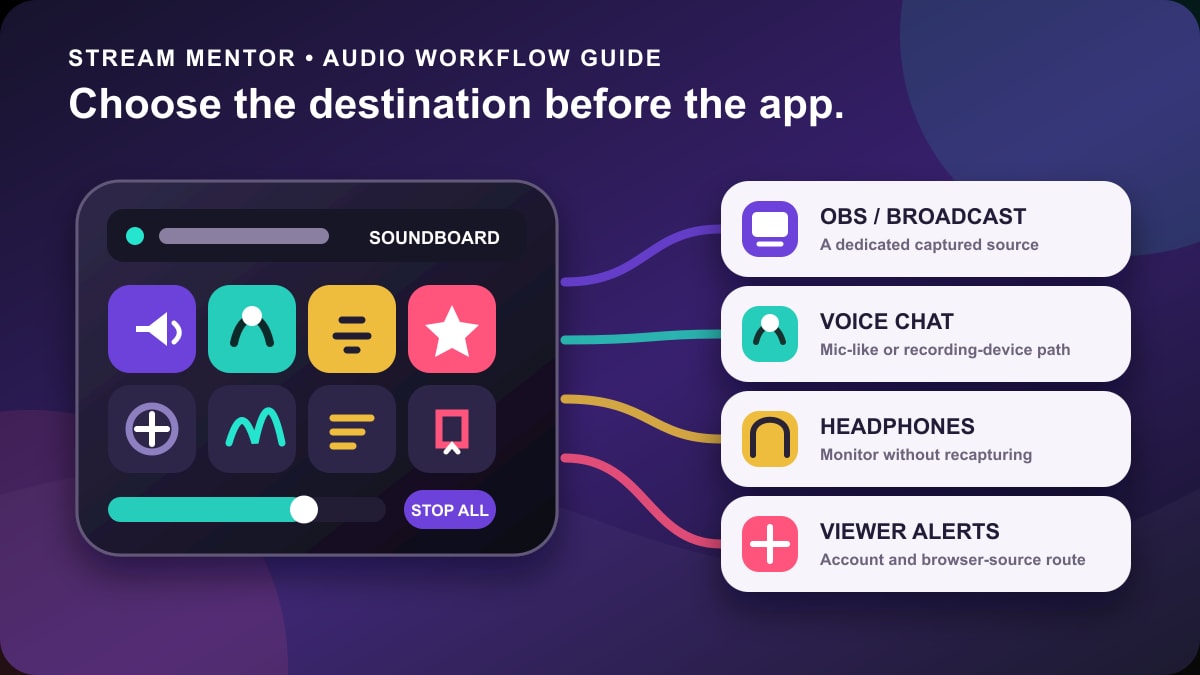
First decide where the clip must be heard
A soundboard button only starts playback. The difficult part is routing that playback to the correct audience without echo, doubled audio, or an accidental private output. Draw the path before installing anything:
- Broadcast only: the clip must be in OBS and the stream, but not in Discord or in-game chat.
- Voice chat only: people in Discord or game chat should hear it, while the stream captures that conversation through an already-tested path.
- Broadcast and voice chat: the clip must feed both destinations without being captured twice.
- Streamer monitoring: you need to hear a preview or the live clip in headphones without sending that monitor copy back into OBS.
- Viewer-triggered alert: a platform event, Channel Points action, or viewer control should fire the clip and perhaps a visible overlay.
For broadcast-only cues, OBS Media Source or Stream Deck playback may be enough. For voice chat, the application must present the sound through a microphone-like or supported recording-device path. For viewer-triggered events, use an alert service designed for browser sources. Trying to make one tool perform all three jobs creates unnecessary audio devices and troubleshooting.
1. Voicemod: best all-in-one starting point for voice effects
Voicemod combines a soundboard, live voice processing, a virtual microphone, community content, and control integrations. Its current Soundboard guide documents custom sounds, playback modes, keybinds, volume controls, stop/mute actions, and mobile controller access. This makes it the most direct shortlist option when the same setup needs voice effects and clips inside Discord, a game, or another app that accepts microphone input.
The important tradeoff is complexity. Voicemod's system-requirements page documents supported Windows and macOS environments, an account/login path, internet access, server permissions, and CPU/RAM considerations. AI voice features require more processing than simply playing a WAV file. Platform and feature support can change, so confirm the current soundboard is available on the exact OS and processor before buying a plan.
Choose Voicemod when:
- you want soundboard clips and a voice changer in one interface;
- the clip must enter a voice-chat input path;
- mobile or Stream Deck-style remote triggering is useful;
- you accept an account, updates, and a virtual audio device.
Skip it when: the stream needs only three local stingers in OBS, the computer is already near its processing limit, or you do not want an account/cloud-dependent tool. Disable every voice effect during the first routing test so you can diagnose the soundboard path separately.
2. Soundpad: best focused Windows voice-chat soundboard
Soundpad is a Windows soundboard distributed through Steam. Its current store documentation says it extends the default recording device—usually the microphone—without installing additional recording devices. It supports local files, hotkeys, recording/editing functions, normalization, and use in voice-related applications and games.
That focused design is useful for someone who wants clips in voice chat without a voice-changer suite. It is not a Mac, Linux, browser, or mobile answer. Steam's current client requirements also matter; do not repeat old Windows 7 support claims as if they describe a current supported installation.
Choose Soundpad when:
- you use Windows and Steam;
- local clips should share the normal voice-chat recording path;
- global hotkeys and simple editing are more important than live voice transformation;
- you prefer a focused paid utility over a larger subscription ecosystem.
Watch for: push-to-talk behavior, the selected default recording device, microphone/sound balance, and chat-app noise suppression. Aggressive suppression can treat a short sound effect as noise. Test with a second private account or a consenting friend; never test repeated loud clips in a public channel.
3. Farrago: best Mac production soundboard
Farrago is a Mac soundboard from Rogue Amoeba. The current Farrago manual documents sound sets, local audio import, keyboard and MIDI triggers, Stream Deck support, per-tile playback behavior, fades, looping, volume, notes, search, and Shortcuts integration on supported macOS versions. The developer also maintains a current software-status page for operating-system compatibility.
Farrago is strongest when the Mac is acting like a production desk: podcasts, live shows, theater cues, tabletop sessions, or a stream with an organized set of local effects. Its playback still needs a route. OBS on recent macOS versions can capture application or desktop audio through supported sources, while sending Farrago into a call may require a separate routing utility and explicit permissions.
Choose Farrago when:
- you want an organized, keyboard-friendly sound grid on macOS;
- you use local files and production-style cue behavior;
- MIDI, Stream Deck, or Apple Shortcuts control matters;
- you are willing to design the OBS/voice-chat audio path separately.
Do not assume: that installing a Mac soundboard automatically makes its output a microphone. Capture it as its own application/source when the stream alone needs it. Add a virtual route only when another application genuinely needs that microphone-like feed.
4. Discord Soundboard: best for Discord-only reactions
Discord's built-in Soundboard is the simplest option when the audience is already in a Discord voice channel. Discord documents desktop/browser uploads, mobile and desktop playback, per-role and per-channel Use Soundboard permission, separate permissions for creating and managing expressions, user volume controls, and Nitro requirements for some cross-server behavior.
This avoids a virtual microphone and a third-party soundboard for a Discord-only job. It does not replace a general OBS board. The stream may hear the Discord conversation through its existing capture path, but that is different from adding a clean separate soundboard source with independent VOD-track control.
Discord explicitly says uploaders are responsible for ensuring sounds comply with its Terms, Community Guidelines, and other people's intellectual-property rights. Server owners should limit upload and use permissions, remove harassment or shock clips, and give members a clear way to turn Soundboard volume down or opt out.
5. Stream Deck Soundboard: best tactile trigger workflow
Elgato's Stream Deck Soundboard action plays local MP3, WAV, FLAC, and M4A files. The official guide documents play/stop, overlap, restart, loop, fade, volume, and output settings. Elgato recommends WAV or FLAC when immediate playback matters because compressed MP3 files require decoding and can introduce a small start hitch.
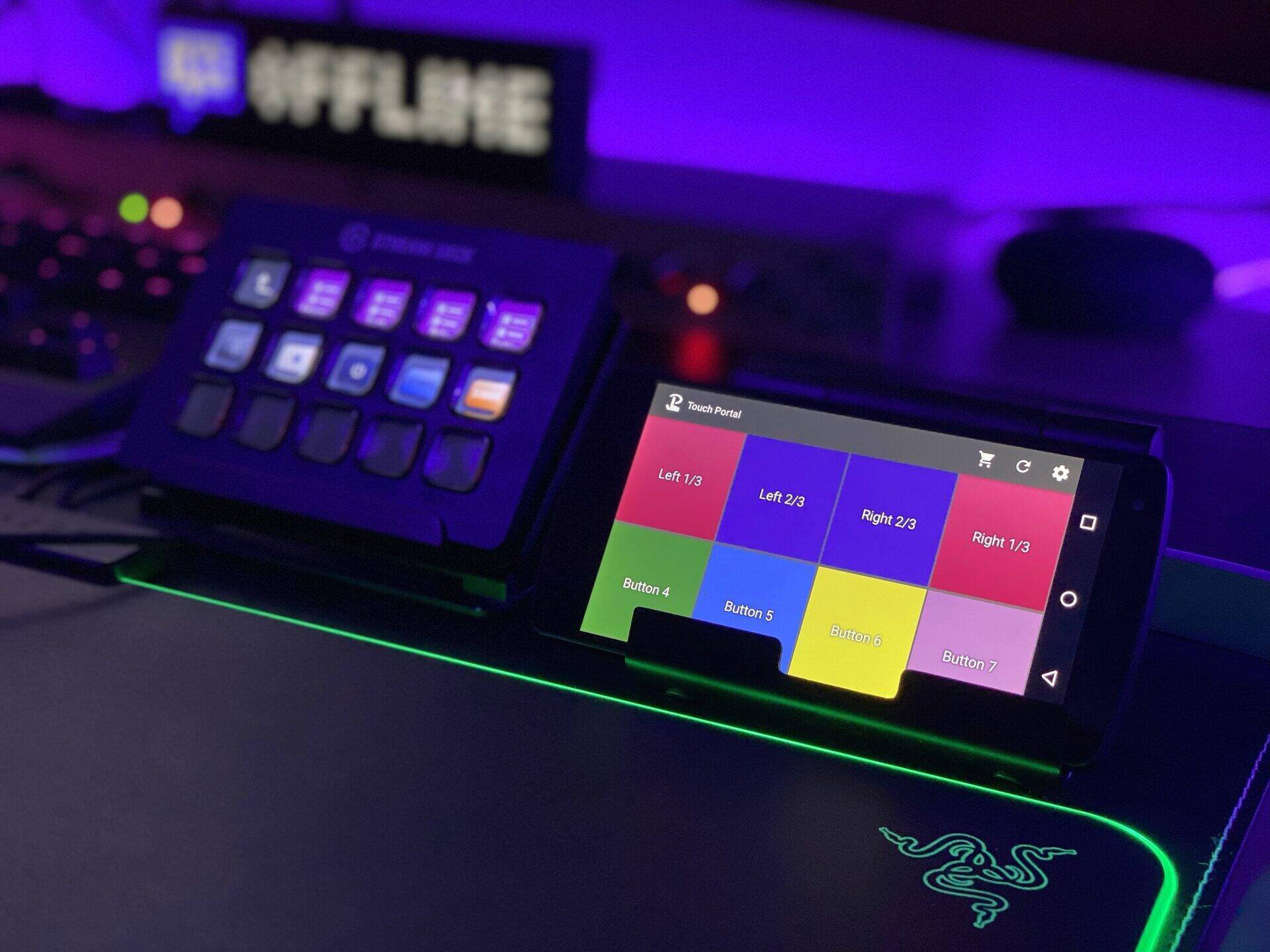
This is a good fit when a Stream Deck is already the streamer's scene and production controller. Each physical key can carry a clear label and icon, and the board can sit beside scene, mute, marker, and safety controls. It is not a reason to buy expensive hardware solely for three sound effects; keyboard hotkeys or OBS sources can do that.
Elgato's guide says Wave Link is required for its documented voice-chat workflow. A separate Elgato article says choosing a specific Soundboard playback device is a Windows feature. Mac users should therefore verify the current output and routing path rather than copying a Windows tutorial.
6. Sound Alerts: best viewer-triggered stream soundboard
Sound Alerts is an alert and viewer-interaction service, not a normal local pad grid. Its setup guide uses a linked Twitch account, web dashboard, optional Twitch extension, and a Browser Source in OBS or another compatible broadcasting tool. The browser source delivers both audio and visual alert elements; viewers can trigger configured sounds through the extension or supported channel interactions.
Choose it when viewer participation is the purpose. Avoid it when the clips are private production cues or must work fully offline. A linked account and browser-source URL are security-sensitive. Review requested Twitch permissions, enable multi-factor authentication on the platform account, never show the private source URL on stream, and revoke the integration if it is no longer used.
Sound Alerts documents a free base service, optional premium features, and a share of Bits used through its Twitch extension. Check the live pricing and revenue terms rather than relying on an old percentage in a roundup. Always run the dashboard's test alert and inspect both the live mix and a recording.
7. OBS Media Source: best no-extra-app option
OBS's official Media Source guide documents local MP3, AAC, OGG, and WAV playback on Windows, macOS, and Linux. A source can loop, restart when it becomes active, hide when playback ends, and unload while inactive. OBS's Sources and Hotkeys tools can make a small local cue set usable without installing a soundboard.
A simple pattern is to create one clearly named Media Source per approved clip, turn off looping, enable restart when active, and assign a unique hotkey to show/restart or otherwise control the source. Put the sources in one “Soundboard” scene or group so they are easy to audit. Keep global Desktop Audio disabled if a separate captured device/source would otherwise duplicate the same playback.
This approach is ideal for a few broadcast-only sounds. It becomes cumbersome with dozens of clips, live search, multiple banks, MIDI control, voice-chat injection, or viewer permissions. Use a dedicated app when those needs are real.
How to choose without wasting money
| Your actual requirement | Start with | Why |
|---|---|---|
| Three to ten local cues only in OBS | OBS Media Source | No extra account, driver, or application |
| Windows clips inside games/Discord | Soundpad | Focused recording-device workflow |
| Voice changer plus clips | Voicemod | One suite and virtual-microphone path |
| Mac production cue grid | Farrago | Purpose-built local sets and control options |
| Only Discord participants need sounds | Discord Soundboard | Built-in permissions and user volume controls |
| You already own a Stream Deck | Stream Deck Soundboard | Tactile triggers inside the existing control workflow |
| Viewers should redeem or trigger alerts | Sound Alerts | Designed for platform events and browser-source output |
Do not choose by library size alone. A million searchable meme clips are a copyright, moderation, consistency, and discovery problem unless you know what can legally and safely be aired. A small labeled collection of original or properly licensed sounds is easier to level-match, moderate, back up, and use intentionally.
Copyright and platform rules apply to every button
A soundboard app does not license the files you import. Buying a song, subscribing to a music service, finding a clip on YouTube, or hearing it in another creator's stream normally does not grant broadcast and VOD rights. Twitch's current DMCA and copyright FAQ says a subscription service may license copyrighted work for personal enjoyment without granting the right to share it on Twitch. Check the exact license for live streams, VODs, clips, monetization, and edits before using a file.
For each clip, keep a small record containing:
- the original file and source URL;
- the creator or rights holder;
- the license or written permission;
- whether live streams, VODs, clips, monetized channels, and modifications are covered;
- required attribution and where it appears;
- the date the license terms were saved or reviewed.
Record your own short sounds, commission a pack with written usage terms, or use a reputable library whose license explicitly covers the intended live and recorded use. “Royalty-free” does not mean public domain or free of conditions. Do not advise creators to rip audio from YouTube.
Build an accessible, moderation-safe soundboard
- Keep levels predictable: normalize or manually match clips, then use the OBS meter and headphones at a safe level. Do not surprise people with extreme volume jumps.
- Do not rely on sound alone: pair important alerts with visible text, color, or animation for viewers who are deaf, hard of hearing, muted, or watching in a noisy place.
- Use descriptive labels: “applause short” is safer than an inside-joke filename. Large text, contrast, and consistent pad positions reduce mistakes.
- Add a stop-all control: keep one obvious key or hotkey that stops playback, plus a mute for the complete soundboard path.
- Prevent overlap: use restart or stop behavior for long clips unless deliberate overlap has been tested.
- Protect participants: never use slurs, sexual audio, doxxing, impersonation, targeted harassment, or sounds designed to trigger panic or trauma.
- Set viewer cooldowns: for interactive alerts, control frequency, volume, cost, permissions, and who can submit or select sounds.
- Explain repeated cues: captions or a small on-screen legend can help viewers understand recurring status sounds.
Set up and test the audio path
- Start with one clip: use a short file you created and know you can broadcast.
- Name every device: write down the physical mic, headphones, soundboard output, virtual input, chat input, and OBS source.
- Choose one capture path: capture the app, its dedicated output device, or the final mixed microphone path—not two of them.
- Disable duplicate global audio: OBS warns that adding a device as a scene source while the same device is enabled globally can cause echo.
- Set monitoring deliberately: decide whether the streamer hears the clip, and make sure the monitor output is not captured back into the stream.
- Match levels: compare speech, game audio, alerts, and the soundboard using OBS's meter and a saved recording.
- Test push-to-talk and suppression: verify that voice-chat gates, automatic gain, echo cancellation, or noise suppression do not cut the clip or pump the microphone.
- Test overlap and stop: trigger the same clip twice, two different clips, and the emergency stop/mute.
- Test a full workload: run the game, chat, browser sources, OBS, and soundboard together for at least ten minutes.
- Review the output elsewhere: listen to the recording on another device and, with permission, confirm the chat-side result using a second account or collaborator.
OBS's Application Audio Capture guide documents per-application capture on current Windows versions and warns users to disable global Desktop Audio when that would duplicate the source. OBS's Audio Sources guide gives the same echo warning for devices added directly to scenes. On macOS and Linux, follow the current OBS and operating-system path rather than assuming the Windows menus exist.
Troubleshooting
| Symptom | Likely cause | First safe check |
|---|---|---|
| Streamer hears the clip but viewers do not | The sound is only on a monitoring/output device that OBS does not capture | Watch the intended OBS source meter while triggering one clip |
| Viewers hear every clip twice | Desktop Audio and a dedicated app/device source capture the same playback | Mute one source at a time in a local recording to identify the duplicate path |
| Discord hears the mic but not the soundboard | Discord still uses the physical mic instead of the app's virtual/extended input path | Verify the exact Discord input and the soundboard's documented voice-chat setup |
| The beginning of clips is cut off | Noise suppression, a gate, compressed-file decode delay, or source activation delay | Disable one processor at a time and test a local WAV file |
| Clips are much louder than speech | Unmatched file levels or automatic gain reacting to the sound | Lower the soundboard source, normalize files, and retest with automatic gain off |
| Audio feeds back or echoes in headphones | The monitor device is recaptured, or the microphone hears speakers | Use headphones, verify the monitoring device, and remove duplicate Listen/Monitor paths |
| Hotkeys fire while typing or gaming | A global binding conflicts with another app | Choose uncommon combinations, label them, and test every game/control profile |
| A browser alert stops after a scene change | The browser source reloads, shuts down when hidden, or was recreated separately | Review the source's visibility/reload settings and reuse the intended existing source |
| The app breaks after an OS update | Unsupported version, driver permission, or virtual-device change | Check the developer's status page before reinstalling or adding another audio driver |
Frequently asked questions
What is the best free soundboard for OBS?
For a few broadcast-only cues, use OBS Media Source before installing anything else. It is built into OBS and supports common audio formats. If clips must enter voice chat or viewers should trigger them, choose a tool designed for that separate route and verify its current free-plan limits.
What is the best soundboard for Discord?
Use Discord's built-in Soundboard for simple server reactions. Use Soundpad on Windows when local clips must share a normal recording-device path, or Voicemod when you also need voice effects and a virtual microphone. Permissions, copyright, user volume, and moderation matter whichever route you use.
Can a soundboard work with OBS without a virtual audio cable?
Yes. OBS can play local Media Sources, capture supported application audio, capture an output device, or load an alert Browser Source. A virtual cable is useful only when the required application/output cannot otherwise be isolated or presented to the destination. Adding one by default increases routing complexity.
Can I use YouTube clips in a soundboard?
Finding a clip on YouTube does not grant permission to download, rebroadcast, monetize, or store it in a VOD. Use audio you created or a source whose license explicitly covers the intended live and recorded use. Keep proof of that license.
Should viewers hear soundboard clips in Twitch VODs?
That is an editorial and rights decision, not only a technical one. If the clip is important to understanding the moment and licensed for recorded use, include it. If a licensed source is live-only or the alert would overwhelm the VOD, route it to a separate track only after testing that the live stream, VOD, clips, and local recording behave as intended.
Do I need a Stream Deck?
No. A keyboard, MIDI controller, mobile controller, app grid, or OBS hotkey can trigger sounds. A Stream Deck is useful when tactile labeled controls already improve the broader production workflow; it is not required for a soundboard.
Sources and review scope
- Voicemod: Soundboard controls and mobile triggering and current system requirements.
- Soundpad: developer-supplied Steam feature and system-requirement page.
- Rogue Amoeba: Farrago product page, current manual, and software compatibility status.
- Discord: official Soundboard use, upload, permission, volume, and IP guidance.
- Elgato: Stream Deck Soundboard formats, actions, output, and voice-chat requirements.
- Sound Alerts: official account, Browser Source, test-alert, and Twitch extension setup.
- OBS Project: Media Sources, Browser Source, Application Audio Capture, Audio Sources, and the 2026 Audio Mixer guide.
- Twitch: DMCA and copyright FAQ for subscription-license limits and rights-holder guidance.
The live search landscape and linked first-party documents were reviewed on July 24, 2026. Stream Mentor did not install, subscribe to, latency-test, security-audit, or compare the audio output of every app. The shortlist is based on documented workflow fit, current support evidence, routing clarity, and safety. Recheck system support, plan limits, privacy disclosures, permissions, pricing, and licenses before installing or paying.