Finding Twitch stream key is quite easy. Here are the 4 simple steps you need to follow in order to get your stream key.
Step 1: Twitch Profile
Go to the Twitch website, and log in to your Twitch account.
Step 2: To the Creator’s Dashboard
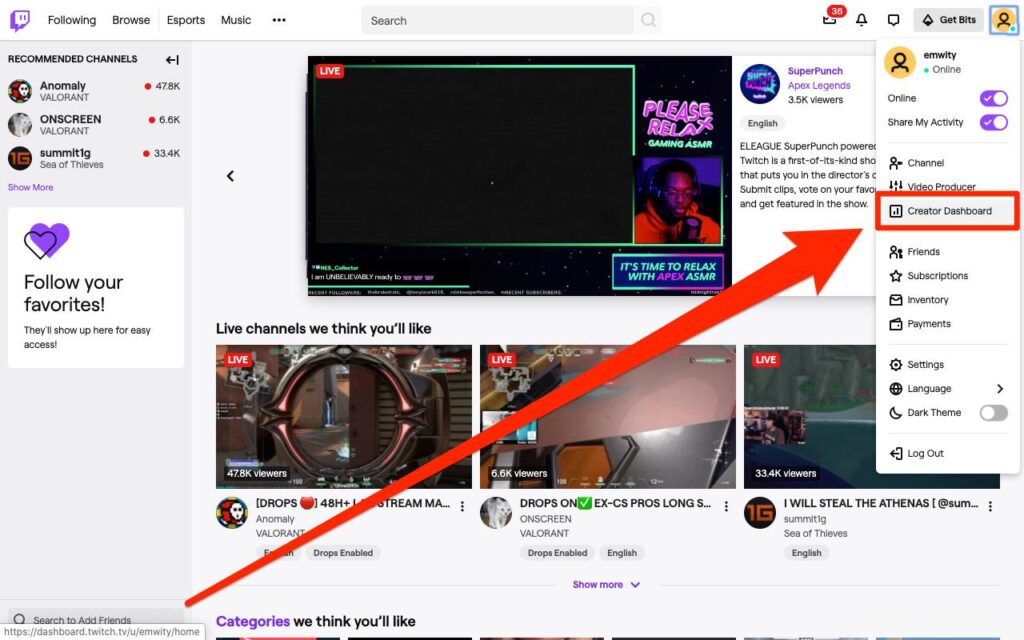
Once logged in, click your profile avatar in the top right corner and go to Creator’s Dashboard.
Step 3: Go to Channel Preferences
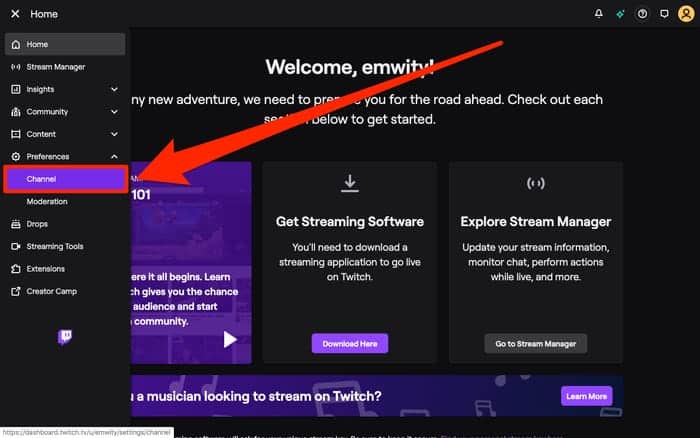
On the left side, click Preferences, and choose Channel.
Step 4: Revealing Stream Key
Click “Stream Key and Preferences” and your key will be shown below.
As a massive giant that continues to grow, Twitch is exceptionally optimized, allowing its content creators to reap numerous benefits in exchange for quality work, while providing viewers with one of the best streaming experiences available on the internet.
However, before you can begin your profitable hobby or career, you need to have your Twitch stream key ready.
It is a specific piece of code that you import into the software designed to distribute your valuable content to your loyal viewer base. The Twitch platform's stream key instructs the software on where to stream your channel on Twitch.
To find your Twitch stream key, navigate to your profile in the top right corner, go to the "Creator Dashboard," and under the "Preferences" tab, click on "Channel." You will see "Stream Key and Preferences," where you can easily copy the entire key and paste it later.
How to Locate Your Twitch Stream Key
We will approach this step by step, allowing you to easily follow what you need to do;
1. Open your internet browser on your computer, navigate to the official Twitch website, and log in.
2. Once you arrive, click on the profile icon in the top right corner and navigate to the "Creator Dashboard."
3. Access the preferences tab and select the option labeled "Channel." It will appear as follows:
4. Now, you need to select the "Stream Key and Preferences" button. Once this is done, voila! You will have access to your stream key, which you can copy and paste wherever you like!

Alternatively, you can access it by clicking on the profile icon and selecting "Settings."
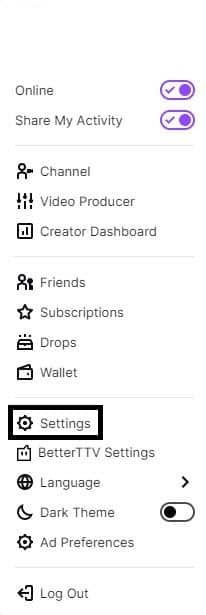
Accessing "Channel and Videos"

You will see the asterisked line that contains your stream key, which holds your unique primary key.
It wasn't as difficult as you might think, right? Now that you know where to find your stream key, do you know how to use it? It's a piece of cake, and here's how!
How to Use Your Key - What to Do After You Find Your Twitch Stream Key Location
Broadcasting your games is not as straightforward as it may appear to some users. Not only is specialized equipment required, but you also need to configure specific software for broadcasting and integrate it with your desired Twitch account.
Once you locate your Twitch stream key, you will need to do the following:
1. Create Your Account
This is obvious, as having a Twitch account is essential for obtaining a stream key in the first place.
2. Download Specialized Broadcast Software
Twitch depends on Open Broadcast Software to operate its extensive streaming engine.
3. Properly Set Up the Software
Fortunately, an installation wizard is available to assist you with the process.
4. Navigate the Source panel until you find the Game Capture mode
The right name for your stream is often half the battle for prospective streamers. Therefore, ensure you choose a catchy name that the audience will love. You can do this from the Game Capture menu by selecting the "Create new" option when you find the tab and then going into "Capture specific window."
From there, you can simply select a currently running game and begin your session.
5. Ensure you select "Game audio" from the available audio channels
Among the various options available in the extensive selection OBS provides, you only need game audio for video game streaming. Ensure that you mute all other audio on your PC, and you are ready to go.
From this point forward, you can configure your account settings to your preference, as you will be able to stream any game from the playing tab. All that remains is to launch OBS Studio:
From this point forward, you can adjust the settings to your preference by following the instructions provided above and selecting options that meet your current needs.
Additional Information About Stream Keys
When addressing the question of how to find your Twitch stream key, it is crucial to stay informed about potentially confusing situations and the additional functions that these features can provide;
1. What happens if someone knows my stream key?
If you believe your account may be at risk, you can reset your key by following the steps above to locate it. From there, you can reset it;
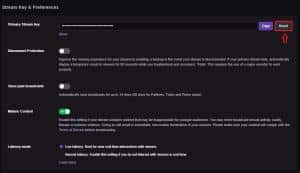
The security of streamer keys supports this option, allowing you to eliminate any security threat related to the key's exposure to unwanted third parties before it escalates.
If you are using streaming software, simply update it manually, and you will be ready for action again!
Additionally, two-factor authentication can provide an extra layer of security, making it more difficult for hackers to take over your account.
2. Can I give my Twitch stream key to someone else so that they can stream on my channel?
1. Log in to your account
2. As before, go to your avatar and select "Creator Dashboard."
3. Navigate to "Preferences" on the left to display the "Channel" option
4. There is an option that controls who can stream to your channel directly called "People who can stream to your channel," which looks like this;

5. Enter the email address of the person you wish to grant the ability to stream to your channel. They will receive a unique key via email for this purpose.
If, for any reason, you want to revoke this privilege, you can remove them from your dashboard, rendering the key they received invalid.