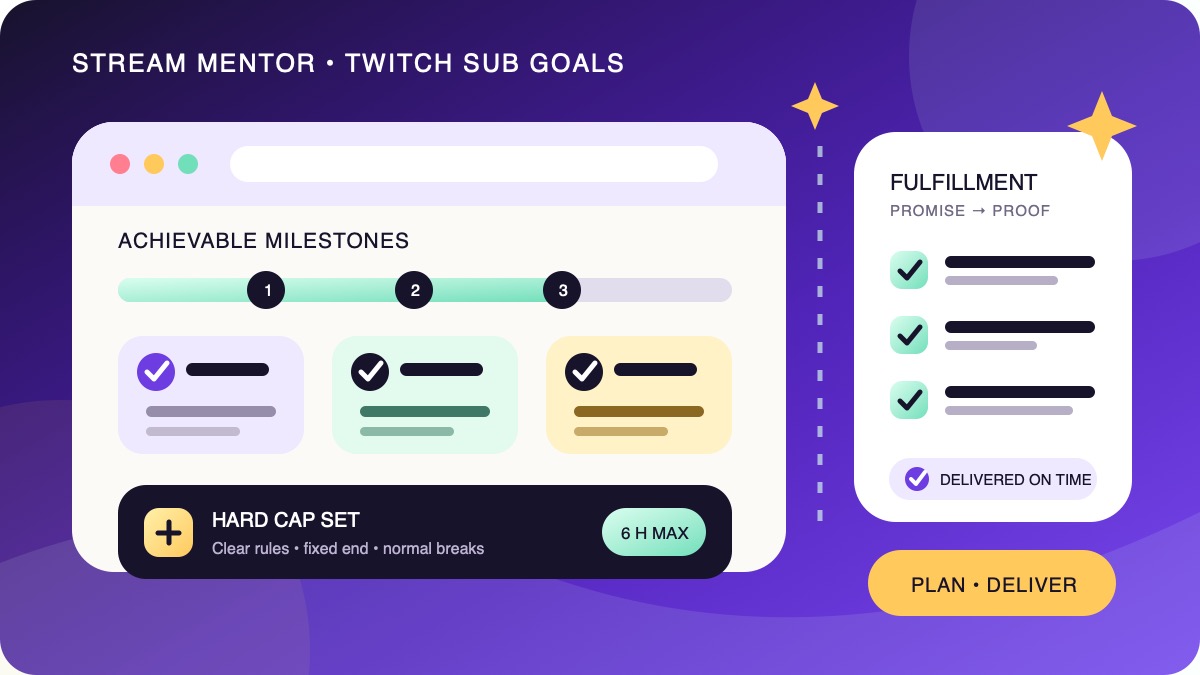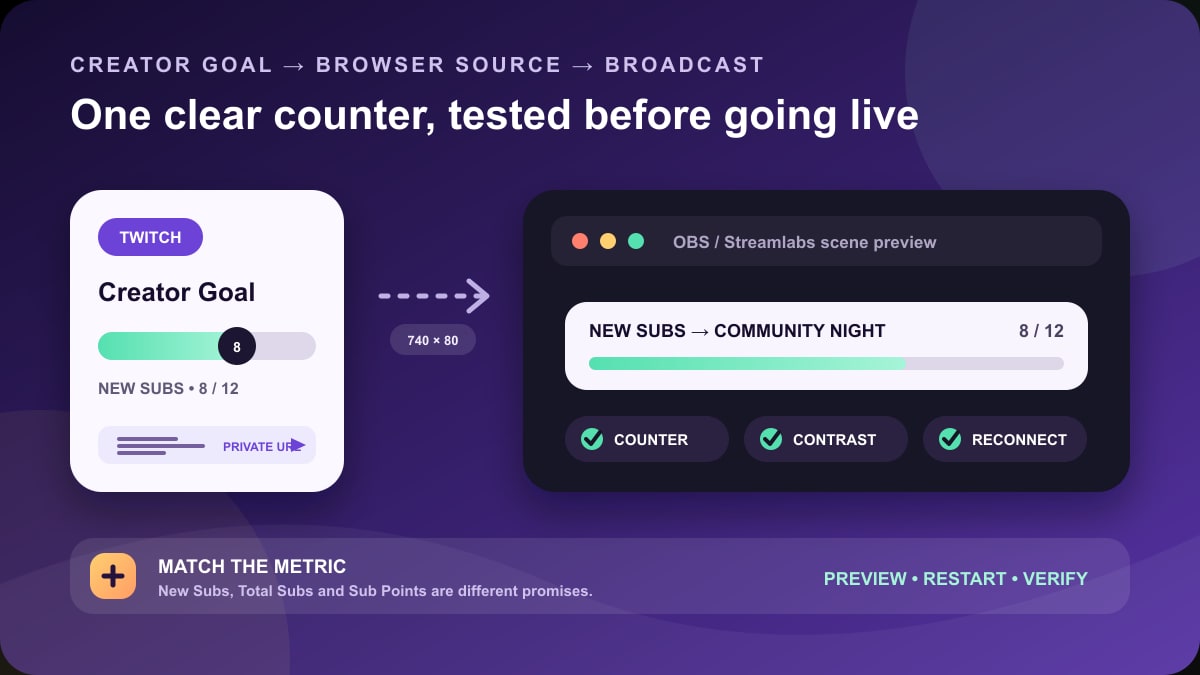
Quick answer: Twitch already provides a native sub goal overlay. In Creator Dashboard → Stream Manager, add the Manage Goals quick action, create the goal, copy its private browser-source URL, and add that URL as a Browser Source in OBS or Streamlabs Desktop. Start with a 740 × 80 browser source, preserve the long horizontal aspect ratio, and confirm that the goal type and progress match your public wording before going live.
Checked July 24, 2026: Stream Mentor rebuilt this guide from Twitch's current Creator Goals documentation, OBS's Browser Source documentation, and Streamlabs' current goal-widget instructions. The former article was mostly a list of affiliate overlay shops. It did not clearly distinguish Twitch's native goal from a third-party counter, explain which metric viewers were seeing, or provide a reliable test and troubleshooting process. Those promotional sections were removed. We did not receive payment from Twitch, OBS, or Streamlabs and did not run a live subscription transaction.
Choose the overlay path before you configure anything
| Path | Where progress comes from | Best reason to use it | Main thing to verify |
|---|---|---|---|
| Twitch Creator Goal | Twitch's active Creator Goal | Direct, simple setup with Twitch's own goal types | The most recently created active goal is the one shown by Twitch's browser source |
| Streamlabs Sub Goal widget | The selected Streamlabs widget and connected platform data | More styling controls or an existing Streamlabs scene workflow | Its counter definition, reset behavior, and starting value match the promise on stream |
| Custom overlay or template | Whatever data source and code the overlay author implemented | A deliberately branded layout that the creator can maintain | Authentication, update support, accessibility, and recovery are documented |
Do not stack all three paths just because they are available. Two goal bars that disagree create more confusion than one plain bar. For most Twitch creators, the native Creator Goal is the safest first setup because the progress and goal type are configured in the same Twitch workflow.
A browser source is a web page rendered inside broadcasting software. It is not a picture that you upload once. The source needs a working URL and network access, and it can change while the stream is running. That is why setup must include a reconnect and update test rather than only a visual preview.
What can Twitch's native goal show?
Twitch's current Creator Goals documentation says every creator can create a follower goal. Affiliates and Partners can use additional monetization goal types, including subscription goals. The exact options shown depend on the channel's eligibility and current Twitch product.
Current subscription choices include Total Subs, Total Sub Points, New Subs, and New Sub Points. They answer different questions:
- Total Subs tracks the applicable subscription count toward a total.
- Total Sub Points uses subscription points, so tiers can contribute differently.
- New Subs counts qualifying new subscription events while that goal is active.
- New Sub Points counts qualifying new subscription points while that goal is active.
Read the description in your own dashboard before announcing a rule. Do not label an overlay “50 subscribers this stream” if the selected goal is Total Sub Points or if a third-party widget has a different starting value. If the goal supports Prime, gifted, or recurring subscriptions, describe them according to the current on-screen Twitch definition rather than an old article or alert log.
Twitch allows a follower goal and a subscription goal to be active at the same time, but its documentation says the browser source displays the most recently created active goal. If the channel starts a follower goal after a sub goal, the browser overlay may switch even though both goals remain active. Preview the source again after creating or replacing any goal.
How to create a Twitch sub goal overlay
- Open Creator Dashboard and go to Stream Manager.
- Under Quick Actions, select the plus icon and add Manage Goals if it is not already present.
- Open Manage Goals. Creators and editors can also open the flow with
/goalin chat. - Select the exact subscription goal type, set the target, write a short description, and choose the progress-bar color.
- Review the metric and target, then start the goal.
- Copy the Browser Source URL. Keep it out of chat, screenshots, public documents, and source-control repositories.
The description should say what the number unlocks, not merely repeat the number. “15 New Subs: community challenge stream Saturday at 7 PM ET” is more useful than “Road to 15.” If the reward needs more explanation, link viewers to a channel panel or command containing the rules, deadline, time zone, and free ways to participate.
Twitch currently offers multiple bar colors, but color does not replace text. A viewer should be able to understand the goal from its label and numbers if they cannot distinguish the selected colors.
Add the Twitch goal to OBS Studio
OBS documents Browser Source as an official source type on Windows, macOS, and Linux builds. The exact labels may vary slightly by OBS version, but the source workflow is:
- Open the scene that should contain the goal.
- In Sources, select the plus icon and choose Browser.
- Create a new source with a descriptive name such as Twitch — New Subs Goal.
- Paste the private Twitch browser-source URL into the URL field.
- Set the source to 740 pixels wide and 80 pixels high as a clear starting size.
- Select OK, then resize and position the source while holding its aspect ratio.
- Right-click the source, open its properties, and use Refresh cache of current page if the first load is blank or stale.
Twitch describes its goal preview as 370 × 40 and suggests 740 × 80 as a scaled browser-source size. Both use the same 9.25:1 ratio. Doubling the dimensions gives OBS more pixels to render while preserving the intended shape; it does not create a taller card. If you need a larger visual, scale the source uniformly instead of forcing it into a square box.
OBS also provides Shutdown source when not visible and Refresh browser when scene becomes active. These settings are not universal fixes. Shutting down can save resources when the scene is hidden, but the web page must reconnect when it returns. Refreshing on scene activation may fix a stale source, but it can briefly reload on every switch. Test both behaviors during rehearsal and use the combination that reconnects consistently on the actual computer and network.
Add the goal in Streamlabs Desktop
There are two distinct Streamlabs setups. Choose one and name the source so another operator knows which system owns the progress.
Use Twitch's native goal inside Streamlabs Desktop
- Create the goal in Twitch and copy Twitch's browser-source URL.
- In Streamlabs Desktop, open the intended scene and add a Browser Source.
- Paste the Twitch URL and use 740 × 80 as the starting dimensions.
- Position it, then preview a scene change and application restart before streaming.
This keeps Twitch as the counter while using Streamlabs only to render the web source.
Use Streamlabs' hosted Sub Goal widget
Streamlabs' current Sub Goal widget guide directs users to Dashboard → All Widgets → Sub Goal. Configure the goal and appearance, save the settings, then copy the widget URL for broadcasting software. In Streamlabs Desktop or the Streamlabs plugin, the widget may also be available as a source.
Before using it publicly, confirm the connected Twitch account, goal amount, starting amount, end amount, metric, reset behavior, and preview. A Streamlabs goal is not automatically the same object as Twitch's Creator Goal. Do not assume that ending or replacing one updates the other.
Design a readable goal bar
A goal overlay is status information, not the main subject of the stream. It should remain readable without covering game HUD elements, captions, faces, scoreboards, or alerts.
- Use a short label: include the metric and payoff, such as “New Subs → community night.”
- Keep contrast high: test the filled and unfilled portions against bright and dark scenes.
- Do not rely on color: keep the current and target numbers visible.
- Respect safe areas: check gameplay, desktop capture, full-screen video, and mobile previews rather than one empty scene.
- Avoid constant motion: animation should communicate an update, not compete with the content for the entire broadcast.
- Use one goal bar: alerts can celebrate individual events, but they should not duplicate a second conflicting progress counter.
At a 1920 × 1080 canvas, a 740 × 80 source is small enough to place along an edge but may still cover game UI. Create a dedicated transform for each scene if the safe area changes. Do not stretch the same source differently across scenes; duplicate the scene item or use a nested scene so its ratio remains consistent.
Test the overlay before asking viewers to trust it
- Confirm ownership: the Twitch or Streamlabs account shown in the widget is the intended channel.
- Read the metric aloud: “New Sub Points” and “Total Subs” should not be treated as synonyms.
- Check the baseline: verify the visible starting value before promotion begins.
- Preview every scene: look for clipping, hidden text, covered HUD elements, and low contrast.
- Change scenes: confirm the source remains loaded or reconnects without an unacceptable delay.
- Restart the software: reopen the scene collection and verify the browser source survives a normal restart.
- Test a safe update: use the platform's preview or a controlled qualifying event; do not invent a fake purchase or ask a viewer to spend merely for testing.
- Check the public channel: verify that the active goal wording on Twitch and the rendered browser source agree.
- Prepare a fallback: know how to hide the source and post a text update if its web page stops loading.
Do not expose the browser-source URL in a screen capture. Capture only the program output or crop the properties window out of tutorials. Treat any private widget URL as configuration data: store it in the broadcast scene, not in a public note or GitHub file.
Fix common sub goal overlay problems
The overlay is blank
Confirm the goal is active and that the URL was pasted completely. Refresh the browser cache, verify that the source width and height are not zero, and test whether another browser source loads on the same network. Then reopen the Twitch goal manager and copy a fresh source URL rather than guessing at URL parameters.
The wrong goal appears
Check whether a follower goal or another subscription goal was created after the intended one. Twitch says its browser source reflects the most recently created active goal. End or replace goals only after reviewing what will happen to their progress, then copy and test the current browser source again.
The number does not match alerts
Alerts and goals may count different events. Identify whether the bar uses Total Subs, Total Sub Points, New Subs, New Sub Points, or a Streamlabs-defined counter. An alert log is not evidence that every event qualifies for the selected goal. Use the goal provider's own progress as the public source of truth.
The text is blurry or cropped
Reset the source to the intended 9.25:1 ratio, start at 740 × 80, and resize uniformly in the canvas. Check OBS's source bounding-box transform and any custom CSS. A browser page designed as a thin bar will crop when forced into a taller or narrower box.
The goal stops updating after a scene change
Review the browser source's shutdown and refresh-on-activation options. Test with one setting change at a time, watch the source reconnect, and inspect the broadcasting software's log if the problem persists. A network or provider outage cannot be repaired with custom CSS; hide the source and communicate progress in text until it recovers.
Frequently asked questions
Do I need to buy a Twitch sub goal overlay?
No. Twitch provides a native Creator Goal and browser-source URL. A paid template may change appearance, but it is optional. Verify how any template receives data, what software it requires, and whether it can be maintained before paying.
Can non-Affiliates make a sub goal?
A channel needs access to subscriptions before a subscription goal is meaningful. Twitch says everyone can make a follower goal, while Affiliates and Partners receive additional goal types. Use the exact options shown in the channel's current goal manager.
Can I show a follower goal and sub goal together?
Both can be active, but Twitch's native browser source currently displays the most recently created active goal. To show two bars, you would need a deliberately tested setup with separate data sources. One clearly labeled bar is usually easier for viewers to understand.
Can I edit a Twitch goal after starting it?
Twitch's current documentation says an active goal cannot be paused or edited. End it and create a new one when the metric, target, or description must change. Review the warning first because ending an incomplete goal can reset its progress.
Does the overlay disappear when the target is reached?
Not automatically. Twitch says a reached goal remains active until the creator ends it or replaces it. Celebrate the result, deliver the promised reward, and end or replace the goal deliberately rather than leaving an old target on future streams.
Sources and review scope
- Twitch Help: Creator Goals for eligibility, goal types, creation steps, active-goal behavior, browser-source behavior, colors, and dimensions.
- OBS Project: Browser Source for URL, dimensions, custom CSS, shutdown, refresh, and cache options.
- OBS Project: Sources Guide for adding and managing scene sources.
- Streamlabs Support: How to Set Up a Sub Goal Widget for the current hosted-widget workflow.
- Streamlabs: Goal widgets overview for Streamlabs Desktop, OBS browser-source, styling, and widget options.
These first-party pages and the current search landscape were reviewed on July 24, 2026. Stream Mentor did not complete a paid subscription to test counter movement or audit third-party template code. Dashboard labels, eligibility, goal types, widget behavior, and dimensions can change; recheck the provider's current page before a production broadcast.