Quick answer: Nightbot includes default moderation and stream-management commands, and it lets you create custom commands with responses, variables, user levels, aliases, and cooldowns. Start with a few commands your viewers genuinely need; too many automatic messages make chat harder to use.
This guide was substantially rewritten in July 2026 from Nightbot's official documentation. Every syntax example below is intended to be copied as one chat message.
Set up Nightbot safely
- Go directly to nightbot.tv and sign in with the streaming service you use.
- Review the requested permissions before authorizing access.
- In the Nightbot dashboard, choose Join Channel.
- Follow Nightbot's instructions to grant the appropriate moderator role.
- Open Commands → Default and disable commands you do not need.
- Set user levels and cooldowns before sharing commands with chat.
Nightbot's official setup guide currently lists support for Twitch, YouTube, Trovo, and SOOP. On YouTube, Nightbot joins only when the stream is public and live because of API limits.
Core default Nightbot commands
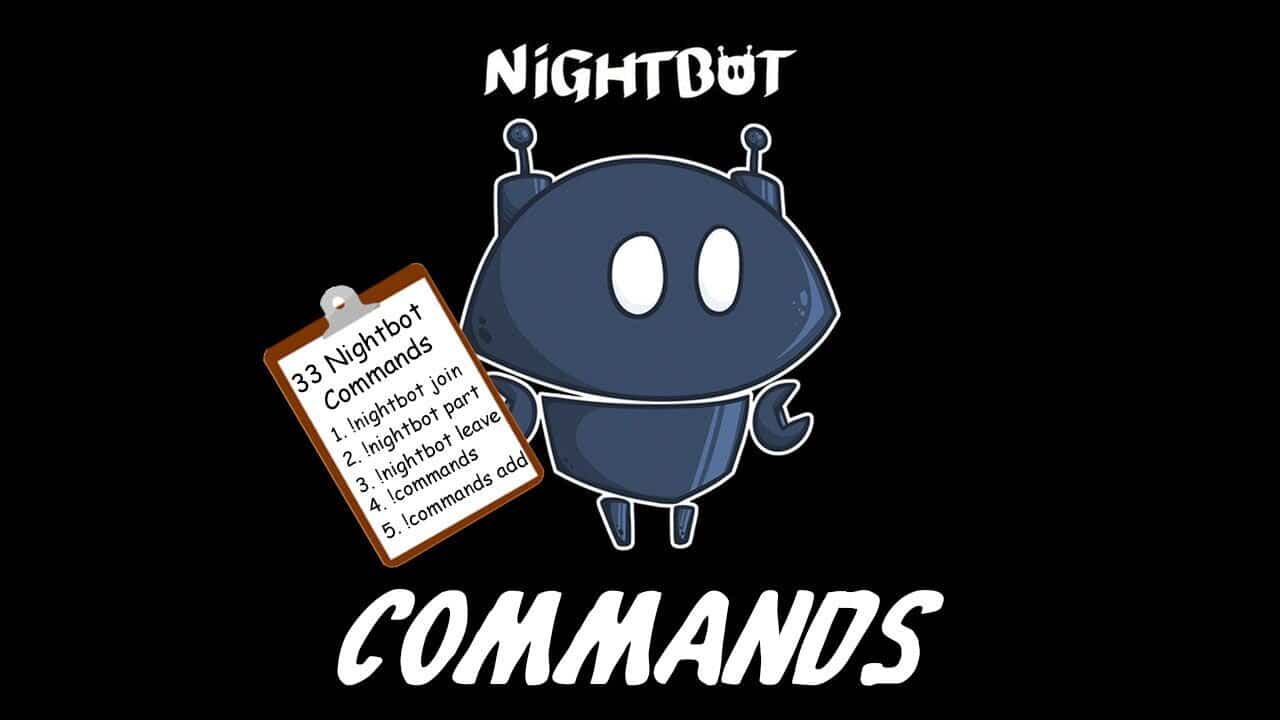
Availability and permissions depend on the connected platform and channel settings. Nightbot's current default command list includes:
!commands— shows the channel's command page; moderators can add, edit, or delete custom commands.!title— displays the current stream title; moderators can provide a new title to change it.!game— displays the current category/game; authorized users can change it.!tags— shows or changes stream tags where supported.!marker— creates a Twitch stream marker for later review.!poll— creates a StrawPoll or shows results.!winner— chooses a random active chatter.!regulars— manages Nightbot's Regular user list.!filters— lets moderators inspect and change spam-protection filters.!permit— temporarily allows a user to post a link when link filtering is active.!songs— manages song requests when that feature is enabled.!commercial— requests a commercial for an eligible Twitch channel; access should remain restricted.
Create a custom command in the dashboard
- Open Commands → Custom.
- Choose Add Command.
- Enter a command name without spaces, usually beginning with
!. - Write the response in Message.
- Choose the minimum user level allowed to run it.
- Set a cooldown long enough to prevent repeated spam.
- Save it, test it in chat, and check how it looks on mobile.
Nightbot's command documentation explains the command name, response, user level, cooldown, alias, editing, and deletion controls.
Add, edit, and delete commands from chat
Owners and moderators with permission can use these forms:
!commands add !rules Read the channel rules: https://example.com/rules
!commands edit !rules Please read the rules before chatting: https://example.com/rules
!commands delete !rules
The first word after add, edit, or delete is the custom command name. The remaining text is the response.
User levels and cooldowns
Nightbot's current chat syntax accepts -ul= for user level and -cd= for cooldown in seconds:
!commands add !schedule -ul=everyone -cd=30 Streams: Tuesday and Thursday at 7 PM UTC.
!commands add !raidmessage -ul=moderator -cd=10 Thanks for the stream! Copy this message for the raid.
Documented user-level values are owner, moderator, twitch_vip, regular, subscriber, and everyone. Twitch VIP is specific to Twitch accounts.
Use everyone for harmless information, regular or subscriber for commands prone to spam, moderator for operational tools, and owner for sensitive actions such as commercials.
Useful custom command examples
Schedule
!commands add !schedule -cd=30 Live Tuesdays and Thursdays at 7 PM UTC. Updates: https://example.com/scheduleSocial or video link
!commands add !youtube -cd=30 Full tutorials: https://youtube.com/@yourchannelRules
!commands add !rules -cd=30 Be respectful, no spoilers, no self-promotion, and follow moderator requests. Full rules: https://example.com/rulesCurrent uptime with a variable
!commands add !uptime Stream uptime: $(twitch $(channel) "{{uptimeLength}}")Variables and external integrations can change or fail, so test dynamic examples against Nightbot's current variables reference before publishing them broadly.
Countdown to a dated event
!commands add !event Event starts in $(countdown Dec 20 2026 7:00:00 PM UTC)Use an unambiguous date and timezone. Nightbot's countdown documentation recommends including the full date, time, and timezone.
Manage common commands
Change or check the title
!title
!title First playthrough — no spoilers
Calling !title without text displays the title. Authorized moderators can add the new title. Nightbot notes that everyone may check the title by default, but only moderator-and-higher levels may change it.
Create a poll
!poll new Which game next? "Game A" "Game B"
!poll results
Nightbot's default poll command currently creates a StrawPoll. Check the generated link and poll settings before presenting it as a formal contest or research result.
Choose a random active chatter
!winnerA random active chatter is not automatically eligible for a prize. Publish entry requirements, region, age, start/end time, selection method, and other legally required terms before running a giveaway.
Run a commercial
!commercial 30
!commercial 60 silent
Nightbot's current documentation says the duration may be 30, 60, 90, 120, 150, or 180 seconds and that the command works only for a partnered channel. The default user level is owner. Platform eligibility and ad behavior can change, so confirm in the Twitch dashboard.
Configure spam protection carefully
The !filters command can manage Nightbot's blacklist, caps, emotes, links, symbols, and repetitions filters. Examples from Nightbot's documented syntax:
!filters caps
!filters caps limit 8
!filters links message Please ask a moderator before posting links.
!filters symbols disable
Do not copy a filter threshold blindly. Watch real chat, exempt trusted user levels where appropriate, and write a timeout message that tells the person what to change. To use !permit, Nightbot says the !filters command must be enabled.
Song requests and copyright
Nightbot can accept YouTube or SoundCloud links/searches when song requests and those providers are enabled. A working request command does not grant a license to rebroadcast music. Review platform music rules and the rights for the recording and composition before using requests on a monetized or archived stream.
Timers without chat spam
Nightbot timers send a message after both a time interval and a configured number of chat lines. Use them for genuinely recurring information such as rules or a schedule. Avoid timers that fire in a quiet chat or repeat the same promotion more often than humans speak.
Troubleshooting Nightbot commands
- No response: confirm Nightbot joined, the command is enabled, the stream/chat is supported, and cooldown has expired.
- Permission error: check the command's user level and Nightbot's moderator role.
- Wrong output: verify spelling, quote placement, variable syntax, and the external service used by the variable.
- Command floods chat: increase the cooldown, restrict the user level, or disable it.
- YouTube bot absent: confirm the stream is public and live.
- Dynamic command stopped working: test the underlying variable or URL independently and remove unsupported examples.
Frequently asked questions
Can moderators add Nightbot commands?
Yes, when permissions allow it. Nightbot's default !commands command lets moderators manage custom commands in chat, and channel managers can be given dashboard access. Limit dashboard access to people who genuinely need it.
What is the best Nightbot cooldown?
There is no universal value. Start around 20–30 seconds for informational commands and increase it for popular or noisy responses. Sensitive operational commands should also have a restricted user level.
Can a command include a user's text?
Yes, variables such as Nightbot's query variables can capture input, but that input may be displayed or sent to another service. Avoid sending private information and test how unexpected text is handled.
A good Nightbot setup is small, predictable, permission-aware, and easy for moderators to maintain.